Optimized Baseline


Overview
This guide deploys the recommended out of the box configuration for most vLLM and SGLang deployments, reducing tail latency and increasing throughput through load-aware and prefix-cache aware balancing.
The optimized-baseline defaults to two main routing criteria:
-
Prefix-cache aware using the prefix cache scorer, which scores candidate endpoints by estimating prompt prefix cache reuse on each model server.
-
Load-aware using both the kv-cache utilization and the queue size scorers.
Default Configuration
| Parameter | Value |
|---|---|
| Model | Qwen/Qwen3-32B |
| Replicas | 8 |
| Tensor Parallelism | 2 |
| GPUs per replica | 2 |
| Total GPUs | 16 |
Supported Hardware Backends
This guide includes configurations for the following accelerators:
| Backend | Directory | Notes |
|---|---|---|
| NVIDIA GPU | modelserver/gpu/vllm/$(INFRA_PROVIDER)/ | Default configuration (INFRA_PROVIDER options: base, gke) |
| NVIDIA GPU (SGLang) | modelserver/gpu/sglang/$(INFRA_PROVIDER)/ | SGLang inference server (INFRA_PROVIDER options: base, gke) |
| AMD GPU | modelserver/amd/vllm/ | AMD GPU |
| AMD GPU (SGLang) | modelserver/amd/sglang | AMD GPU |
| Intel XPU | modelserver/xpu/vllm/ | Intel Data Center GPU Max 1550+ |
| Intel Gaudi (HPU) | modelserver/hpu/vllm/ | Gaudi 1/2/3 with DRA support |
| Google TPU v6e | modelserver/tpu-v6/vllm/ | GKE TPU |
| Google TPU v7 | modelserver/tpu-v7/vllm/ | GKE TPU |
| CPU | modelserver/cpu/vllm/ | Intel/AMD, 64 cores + 64GB RAM per replica |
Some hardware variants use reduced configurations (fewer replicas, smaller models) to enable CI testing for compatibility and regression checks. These configurations are maintained by their respective hardware vendors and are not guaranteed as production-ready examples. Users deploying on non-default hardware should review and adjust the configurations for their environment.
Prerequisites
-
Have the proper client tools installed on your local system to use this guide.
-
Checkout llm-d repo:
export branch="main" # branch, tag, or commit hashgit clone https://github.com/llm-d/llm-d.git && cd llm-d && git checkout ${branch} -
Set the following environment variables:
export GAIE_VERSION=v1.5.0export GUIDE_NAME="optimized-baseline"export NAMESPACE=llm-d-optimized-baseline -
Install the Gateway API Inference Extension CRDs:
kubectl apply -k "https://github.com/kubernetes-sigs/gateway-api-inference-extension/config/crd?ref=${GAIE_VERSION}" -
Create a target namespace for the installation
kubectl create namespace ${NAMESPACE}
Installation Instructions
1. Deploy the llm-d Router
Standalone Mode
This deploys the llm-d Router in Standalone Mode:
# Assuming base-directory is the root of the llm-d repo
helm install ${GUIDE_NAME} \
    oci://registry.k8s.io/gateway-api-inference-extension/charts/standalone \
    -f guides/recipes/router/base.values.yaml \
    -f guides/${GUIDE_NAME}/router/${GUIDE_NAME}.values.yaml \
    -n ${NAMESPACE} --version ${GAIE_VERSION}
Gateway Mode
To use a Kubernetes Gateway managed proxy rather than the standalone version, follow these steps instead of applying the previous Helm chart:
- Deploy a Kubernetes Gateway named by following one of the gateway guides.
- Deploy the llm-d router and an HTTPRoute that connects it to the Gateway as follows:
export PROVIDER_NAME=gke # options: none, gke, agentgateway, istio
helm install ${GUIDE_NAME} \
    oci://registry.k8s.io/gateway-api-inference-extension/charts/inferencepool  \
    -f guides/recipes/router/base.values.yaml \
    -f guides/${GUIDE_NAME}/router/${GUIDE_NAME}.values.yaml \
    --set provider.name=${PROVIDER_NAME} \
    --set experimentalHttpRoute.enabled=true \
    --set experimentalHttpRoute.inferenceGatewayName=llm-d-inference-gateway \
    -n ${NAMESPACE} --version ${GAIE_VERSION}
2. Deploy the Model Server
Apply the Kustomize overlays for your specific backend (defaulting to NVIDIA GPU / vLLM):
export INFRA_PROVIDER=base # base | gke
kubectl apply -n ${NAMESPACE} -k guides/${GUIDE_NAME}/modelserver/gpu/vllm/${INFRA_PROVIDER}/
Other Accelerators
# AMD GPU
kubectl apply -n ${NAMESPACE} -k guides/${GUIDE_NAME}/modelserver/amd/vllm/

# Intel XPU
kubectl apply -n ${NAMESPACE} -k guides/${GUIDE_NAME}/modelserver/xpu/vllm/

# Intel Gaudi (HPU)
kubectl apply -n ${NAMESPACE} -k guides/${GUIDE_NAME}/modelserver/hpu/vllm/

# Google TPU v6e
kubectl apply -n ${NAMESPACE} -k guides/${GUIDE_NAME}/modelserver/tpu-v6/vllm/

# Google TPU v7
kubectl apply -n ${NAMESPACE} -k guides/${GUIDE_NAME}/modelserver/tpu-v7/vllm/

# CPU
kubectl apply -n ${NAMESPACE} -k guides/${GUIDE_NAME}/modelserver/cpu/vllm/
3. (Optional) Enable monitoring
GKE provides automatic application monitoring out of the box. The llm-d Monitoring stack is not required for GKE, but it is available if you prefer to use it.
- Install the Monitoring stack.
- Deploy the monitoring resources for this guide.
kubectl apply -n ${NAMESPACE} -k guides/recipes/modelserver/components/monitoring
Verification
1. Get the IP of the Proxy
Standalone Mode
export IP=$(kubectl get service ${GUIDE_NAME}-epp -n ${NAMESPACE} -o jsonpath='{.spec.clusterIP}')
Gateway Mode
export IP=$(kubectl get gateway llm-d-inference-gateway -n ${NAMESPACE} -o jsonpath='{.status.addresses[0].value}')
2. Send Test Requests
Open a temporary interactive shell inside the cluster:
kubectl run curl-debug --rm -it \
    --image=cfmanteiga/alpine-bash-curl-jq \
    --env="IP=$IP" \
    --env="NAMESPACE=$NAMESPACE" \
    -- /bin/bash
Send a completion request:
curl -X POST http://${IP}/v1/completions \
    -H 'Content-Type: application/json' \
    -d '{
        "model": "Qwen/Qwen3-32B",
        "prompt": "How are you today?"
    }' | jq
Benchmarking
The benchmark launches a pod (llmdbench-harness-launcher) that, in this case, uses inference-perf with a shared prefix synthetic workload named shared_prefix_synthetic. This workload runs several stages with different rates. The results will be saved to a local folder by using the -o flag of run_only.sh. Each experiment is saved under the specified output folder, e.g., ./results/<experiment ID>/inference-perf_<experiment ID>_optimized-baseline_<model name> folder
For more details, refer to the benchmark instructions doc.
1. Prepare the Benchmarking Suite
-
Download the benchmark script:
curl -L -O https://raw.githubusercontent.com/llm-d/llm-d-benchmark/main/existing_stack/run_only.shchmod u+x run_only.sh
2. Download the Workload Template
curl -LJO "https://raw.githubusercontent.com/llm-d/llm-d/main/guides/${GUIDE_NAME}/benchmark-templates/guide.yaml"
3. Execute Benchmark
export IP=$(kubectl get service ${GUIDE_NAME}-epp -n ${NAMESPACE} -o jsonpath='{.spec.clusterIP}')
Click here for Gateway Mode
export IP=$(kubectl get gateway llm-d-inference-gateway -n ${NAMESPACE} -o jsonpath='{.status.addresses[0].value}')
envsubst < guide.yaml > config.yaml
./run_only.sh -c config.yaml -o ./results
Cleanup
To remove the deployed components:
helm uninstall ${GUIDE_NAME} -n ${NAMESPACE}
kubectl delete  -n ${NAMESPACE} -k guides/${GUIDE_NAME}/modelserver/gpu/vllm/${INFRA_PROVIDER}
kubectl delete namespace ${NAMESPACE}
Benchmarking Report
The benchmark runs on 16 × H100 GPUs, distributed across 8 model servers (2 H100s per server with TP=2).
Comparing llm-d Routing to a Simple Kubernetes Service
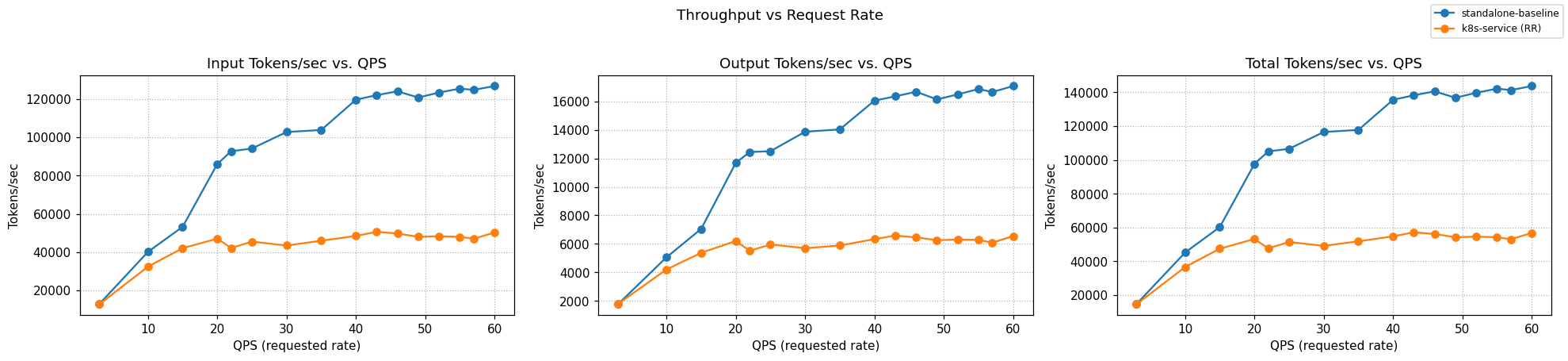
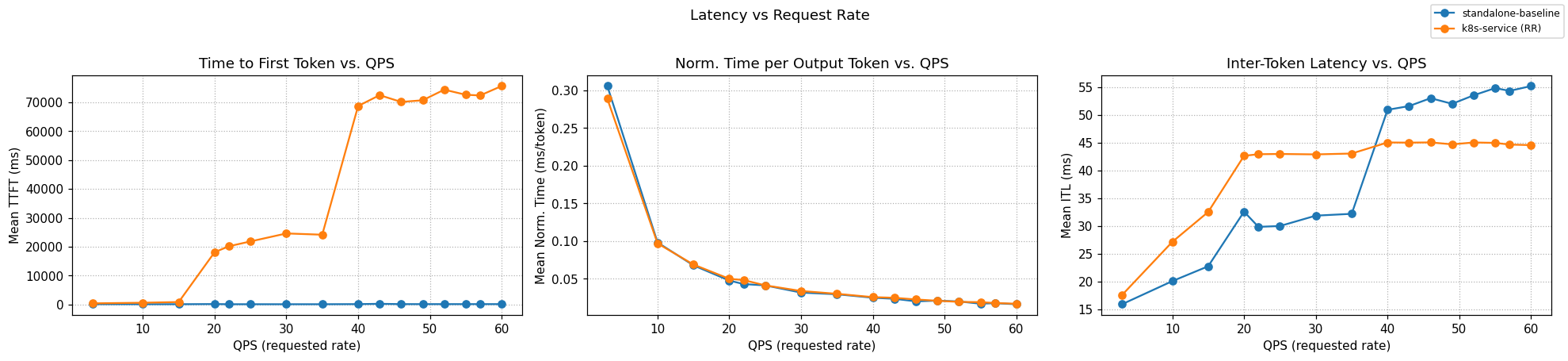
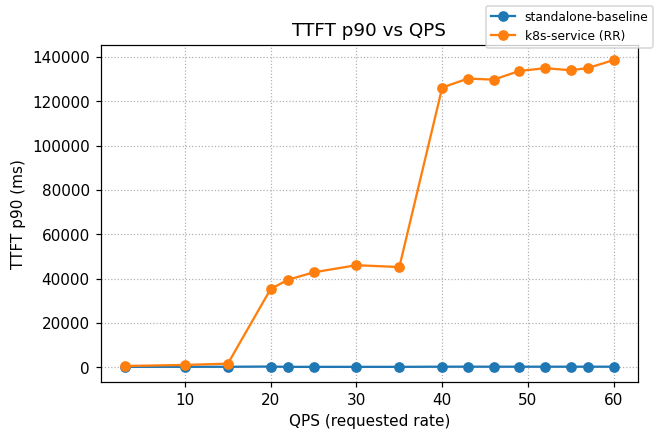
Graphs below compare optimized-baseline routing to a stock Kubernetes Service that round-robins requests across the same 8 vLLM pods (no EPP, no scoring).
Summary across the full ladder (rates 3 → 60):
| Metric | k8s service (RR) | llm-d Optimized | Δ% vs k8s |
|---|---|---|---|
| Output tokens/sec | 5,722 | 13,163 | +130.0% |
| Requests/sec | 35.87 | 36.38 | +1.4% |
| TTFT mean (s) | 58.10 | 0.156 | −99.73% |
| TTFT p90 (s) | 107.43 | 0.206 | −99.81% |
| ITL mean (ms) | 44.0 | 47.0 | +6.8% |
Click to view the per-rate breakdown across the full ladder
Output tokens/sec — higher is better; TTFT in seconds — lower is better.
| Rate | k8s Output | llm-d Output | k8s TTFT mean | llm-d TTFT mean | k8s TTFT p90 | llm-d TTFT p90 |
|---|---|---|---|---|---|---|
| 3 | 1,797 | 1,777 | 0.415 | 0.133 | 0.522 | 0.162 |
| 10 | 4,215 | 5,066 | 0.630 | 0.125 | 1.014 | 0.172 |
| 15 | 5,381 | 7,053 | 0.881 | 0.122 | 1.593 | 0.187 |
| 20 | 6,205 | 11,688 | 18.103 | 0.174 | 35.344 | 0.283 |
| 22 | 5,517 | 12,436 | 20.171 | 0.116 | 39.436 | 0.148 |
| 25 | 5,965 | 12,501 | 21.842 | 0.116 | 42.813 | 0.146 |
| 30 | 5,702 | 13,862 | 24.597 | 0.117 | 46.036 | 0.148 |
| 35 | 5,890 | 14,026 | 24.162 | 0.117 | 45.190 | 0.150 |
| 40 | 6,336 | 16,041 | 68.673 | 0.153 | 126.238 | 0.216 |
| 43 | 6,588 | 16,339 | 72.429 | 0.254 | 130.275 | 0.218 |
| 46 | 6,459 | 16,665 | 70.084 | 0.154 | 129.810 | 0.220 |
| 49 | 6,265 | 16,126 | 70.659 | 0.151 | 133.718 | 0.209 |
| 52 | 6,303 | 16,474 | 74.326 | 0.152 | 134.981 | 0.219 |
| 55 | 6,290 | 16,854 | 72.564 | 0.153 | 134.034 | 0.215 |
| 57 | 6,089 | 16,641 | 72.329 | 0.153 | 135.023 | 0.217 |
| 60 | 6,551 | 17,064 | 75.586 | 0.154 | 138.663 | 0.217 |